
If you want to bring your own supplier into Gelato Connect — and have GelatoConnect Workflow automatically consume stock from GCP Inventory and trigger reorders against that supplier — the records have to be set up in the right order.
This article walks you through that setup end-to-end
Why the order matters
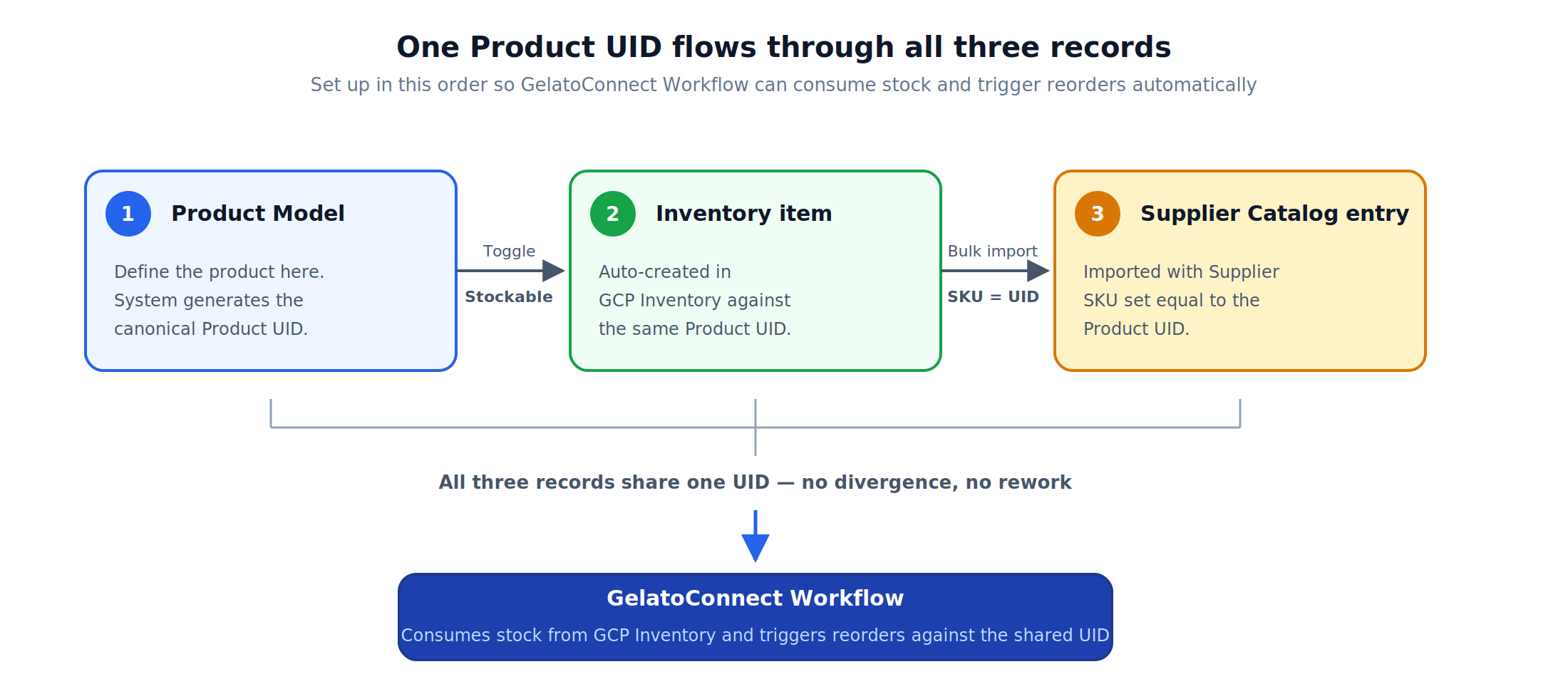
There are three records involved when a supplier-procured item is also used in automated production:
Product Model — defines the product and generates the canonical Product UID
Inventory item — tracks stock against that UID
Supplier Catalog entry — links the supplier's SKU to the Product UID for procurement
Workflow reads from the Product Model. Inventory Management requires that the Supplier SKU equals the Product UID for the item to be visible and stockable. If the records are created in the wrong order — for example, by starting in the supplier catalog — Workflow ends up generating its own Product UID that doesn't match what's in the supplier catalog, and Inventory Management breaks.
The fix is to start with the Product Model so that one UID flows through all three records.
Step 1: Create the Product Model
Go to Catalog → Product Models → New Product Model.
Define the product: name, category, attributes, variants. This is your master record.
When you save, the system generates a Product UID. This UID is the canonical identifier that every other record will reference. Make a note of it — you'll need it in Step 3.
Step 2: Make the Product Model stockable
In the Product Model, toggle Stockable on.
This automatically creates an Inventory item against the same Product UID. You don't need to create the inventory record manually — and crucially, you don't need to reconcile a UID afterwards, because there's only one UID in play.
The inventory item starts with zero stock. Stock will be added when you receive deliveries from the supplier (Step 4).
Step 3: Add the products to your supplier's catalog
Go to Procurement → Suppliers → [Your Supplier] → Bulk Import.
Prepare a CSV with the supplier's products. The two fields that matter for the linking to work:
Supplier SKU — set this equal to the Product UID generated in Step 1. This is what makes Inventory Management recognise the supplier product as stockable against your inventory.
Product Name — set this to whatever the supplier uses on their side. This is for your reference and for purchase orders; it doesn't have to match the Product Model name.
Other fields (price, MOQ, lead time, EAN barcode, pack size) are filled in as normal from the supplier's data.
Upload the CSV. Each row creates a supplier catalog entry that's now linked to the Inventory item via the shared UID.
What if the supplier doesn't provide a SKU?
If the supplier doesn't have its own SKU for an item, you can use the Product UID directly as the Supplier SKU or choose your own Product Names. The match still holds, and you have a logical, traceable identifier on both sides.
Step 4: Verify the link
Once Step 3 is complete:
Go to Inventory Management and search for the Product UID. The item should appear, with the supplier you just imported showing as a default supplier option.
Open the inventory item and check that the supplier catalog entry is linked.
(Optional) Place a small test purchase order to confirm receiving flows stock into the correct inventory location.
If the inventory item doesn't appear, the most common cause is a mismatch between Supplier SKU and Product UID — re-check the bulk import file.
Step 5: Workflow now handles the rest
With the three records linked through one UID:
Automated consumption: when a production order is processed in Workflow, the required quantity is deducted from inventory automatically against the same UID.
Automated reordering: when stock falls below the minimum threshold (set on the inventory item), Gelato Connect generates a draft purchase order against your linked supplier, with the correct SKU, price, and lead time pulled from the supplier catalog.
EAN barcodes: the supplier-provided EAN is carried through from the supplier catalog and remains editable on the supplier catalog entry. Because there's no UID divergence, the EAN stays attached to the right record.
Common mistakes to avoid
Starting in the supplier catalog instead of the Product Model. If you create the supplier catalog entry first and then try to make it stockable, you're working backwards. Workflow will not pick up your overridden UID — it will look for a Product Model and, finding none, generate its own. Always start with the Product Model.
Letting the Supplier SKU drift from the Product UID. If you change the Supplier SKU after the link is established (for example, because the supplier sends a revised SKU), the inventory link breaks. Update the Product UID on the Product Model first if needed, then re-link.
When this setup is the right choice
Use this flow when all three of the following are true:
You're sourcing the item from your own supplier (not via Gelato's standard catalog).
You want to hold stock of the item and have Inventory Management track it.
You want Workflow to consume that stock automatically when production orders are placed, and trigger reorders when stock runs low.
If you only need one or two of these — for example, you're sourcing your own supplier but not using Workflow for automated consumption — a simpler setup may apply. Contact your Gelato Connect implementation lead for guidance.
Related articles
Setting up a new supplier in Procurement