This guide provides an overview of the GelatoConnect Workflow Builder, detailing its features, key concepts, and answers to frequently asked questions. It aims to assist users in creating efficient production workflows by explaining essential terminology and processes.
Understanding Workflows
A workflow is an automated sequence of activities that transforms a customer order into a finished product, managing everything from file preparation (pre-production) to production. To get started with creating a workflow, you can:
Create a new workflow from the Product Model.
Duplicate an existing workflow that is similar to your needs under the same Product Model.
Export or import a workflow to different Product Models.
Activities and Their Connections
Activities are the individual building blocks of your workflow, performing specific actions such as batching orders, adding preflight steps, or sending files to your SFTP. You can connect them sequentially by dragging and dropping them onto the canvas, where they will automatically link to define the flow of a job.
Managing Complex Products
For complex products with multiple parts, like a photobook, you can use a single workflow to manage all components. The workflow will automatically split the job based on the number of parts (e.g., cover, inner pages, end sheets), allowing each part to follow a unique path with its own set of activities before being combined later in the process (binding).
Batching for Efficiency
Batching is the process of grouping multiple order items together before they are sent to production. This step is crucial for production efficiency, as it consolidates jobs that share common characteristics like paper format, size, or material. You can configure a batch to be released based on a specific time (e.g., midnight) or a total number of items.
Troubleshooting Workflows
If a workflow fails, you can use the Manage Orders or the Executions screen to find the specific order and inspect the workflow's run history. Here are steps to troubleshoot:
Review the clear error message for the failed activity to pinpoint the problem.
View the data passed into that step to understand why it failed.
After making a correction, you can reprocess the workflow.
Testing Workflows
To validate a workflow, you can perform a test run. This feature allows you to simulate a job's journey through the workflow without producing it. During a test run, you can:
Select an existing order in the system with the relevant information.
Create the workflow.
Observe the results of each activity as they complete in real-time.
Confirm that the logic, data transformations, and outputs are correct before publishing the workflow.
Using Conditional Logic
Yes, you can use the Paths activity to introduce conditional logic into your workflow. Paths route jobs to different sets of activities based on predefined conditions, allowing for more dynamic and flexible workflows.
Glossary of Terms
Term | Description |
Workflow | An end-to-end, automated process for producing a product, from preflight to the final production-ready product. |
Activity | A single, actionable task or function within a workflow. Examples include preflight, batching, or printing. |
Batch | A group of multiple order items is processed together based on shared criteria to maximize production efficiency. |
Preflight or Pre-production | The set of activities in a workflow that prepare digital files for production, such as converting PDFs to images or adding blank pages. |
Imposition | The process of arranging multiple print jobs on a single sheet or plate to optimize material usage. Imposition templates define how this layout is structured. |
Context | The data and metadata associated with a job that is passed from one activity to the next. The context is dynamically updated as a job moves through the workflow. |
Paths | An activity that introduces conditional logic into a workflow, allowing jobs to be routed down different branches based on predefined rules. |
SFTP | Secure File Transfer Protocol. This activity is used to securely upload the final output files (e.g., imposed plates) from the workflow to your production systems.
Note: Gelato requires all printers to have an SFTP connection via which we transfer files that need to be printed. The SFTP must be an encrypted connection that is accessible only to Gelato and password-protected. Please set up an SFTP and provide the following information:
Secure passwords must contain:
File path: to the folder where we will send files (e.g., |
Test Run | A simulation mode that allows you to test a workflow with an order item without producing a physical product. |
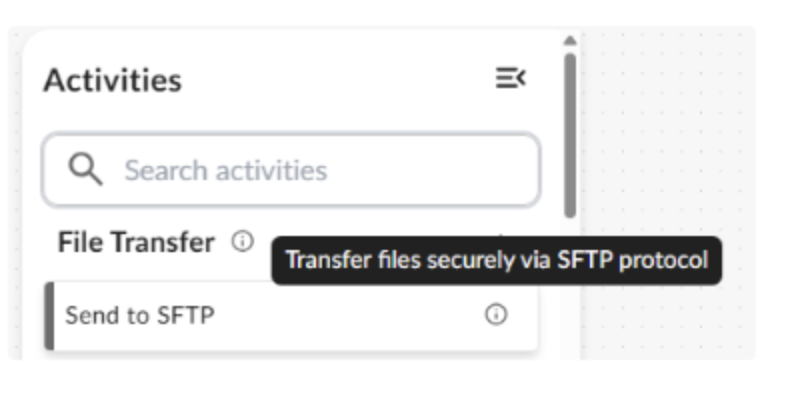
You will find the description of each activity when hovering over the “i” button next to each title: