
In this article, we will explore the Notifications and Alerts system designed to keep you informed about critical events in your production environment. This system allows you to subscribe to specific event types and receive timely in-app notifications whenever relevant events occur.
Overview of Notifications and Alerts
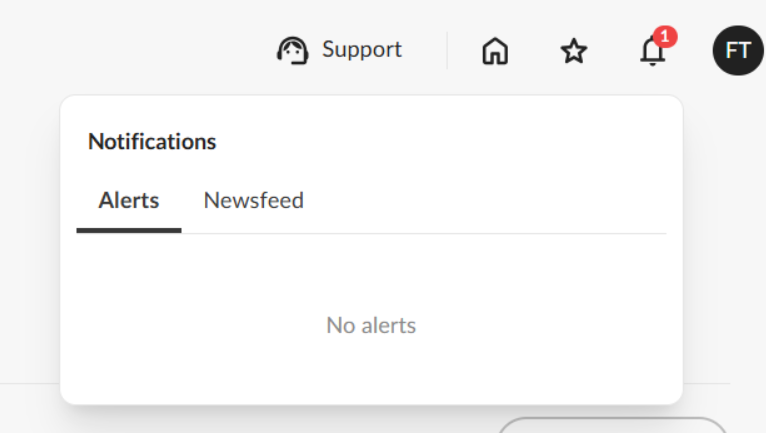
The Notifications section in the main menu features two key tabs:
Newsfeed — This tab displays your existing feed of general product and platform updates.
Alerts — A dedicated tab for troubleshooting events that require action, which you have subscribed to.
The Alerts tab provides real-time updates on events across your production environment. You can customize which events you want to be notified about and designate team members to receive these notifications.

📷 Notifications section showing the Newsfeed and Alerts tabs
Understanding How Alerts Work
When a subscribed event occurs, GelatoConnect consolidates all related activities within a short timeframe and delivers a single notification instead of multiple alerts for each individual trigger. For instance, if a connection goes down and recovers multiple times quickly, you will receive one comprehensive notification summarizing the entire sequence of events.
ℹ️ Delivery channel
Alerts are delivered as in-app notifications, visible in the Alerts tab under Notifications. You can also find them in the “bell” icon at the top, grouped under the tab “Alerts.”
Event Categories for Alerts
Alerts are organized into several categories. You can choose to subscribe to all categories or select only those that are relevant to your workflow.
Category | Description |
Connectivity | Events related to FTP Connection Down, Auth Failure, SFTP Timeout. |
EDI Levels | Events triggered by Label Generation Failure, EDI Mapping Error, Invalid Barcode, Carrier Rejection. |
Workflows | Events related to Workflow Step Failed, Automation Rule Not Triggered, Job Stuck In Queue. |
File Transfer | Events related to File Download Failed, Upload Incomplete, File Format Rejected, File Not Found. |
Warnings | Retry Limit Approaching, Queue Depth Threshold Exceeded, Slow Response Time. |
Informational | Workflow Completed, File Downloaded Successfully, FTP Restored. |
Setting Up Your Notifications
You can configure your alert subscriptions from the Notifications page.
Subscribing to Events
In the main menu, navigate to Notifications.
Select the Alerts tab.
Click Setup Notifications.
Browse the event categories and locate the events you want to track.
For each event, toggle the subscription on to enable in-app notifications.
In the Recipients column, select which team members should receive notifications for that event. The list reflects the users configured in the Users and Permissions page.
Save your preferences.
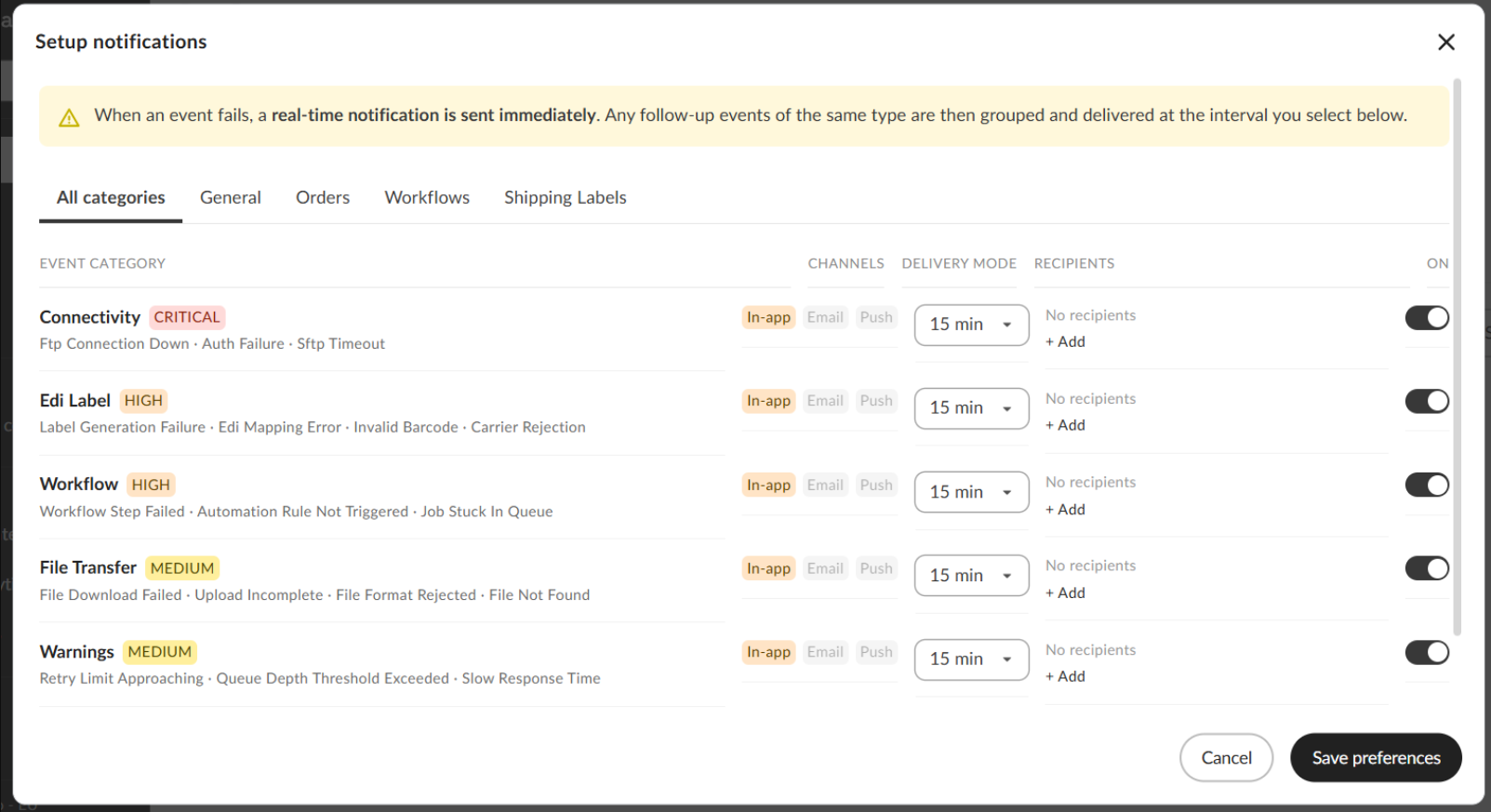
📷 Setup Notifications panel --> Event categories and subscription toggles
⚠️ Permissions
Only users listed in the Users and Permissions page can be added as recipients.
Filtering by Category
Use the category tabs at the top of the Setup Notifications panel to filter the event list:
All — shows every available event across all categories.
Orders — events related to order processing.
Workflows — events related to workflow execution and job routing.
Shipping Labels — events related to label generation and shipping status.
Viewing and Acting on Alerts
All triggered alerts appear in the Alerts tab under Notifications. This is where you can monitor active issues and take necessary actions.
Reading an Alert
In the main menu, navigate to Notifications.
Select the Alerts tab.
Review the list of alerts. Each entry shows the event type, category, timestamp, and a brief description of what occurred.
Select an alert to see the full event detail and any recommended next steps.
Taking Action on Alerts
The Alerts tab highlights events that require intervention, sourced from the Troubleshooting Console page. Typical remediation steps depend on the event category:
Connectivity issues — check printer and FTP connection settings in the relevant configuration page.
Workflow events — review the affected workflow in the Workflow Builder to identify any misconfiguration.
File Transfer events — verify that source files are available and correctly formatted.
Warnings — review the flagged item and assess whether production action is needed before proceeding.
ℹ️ Note
Alerts related to the Troubleshooting Console are only shown in the Alerts tab. They do not appear in the Newsfeed.
Video walkthrough: