
This article explains how to sell multiple products together as one bundled product in your store.
Why sell bundles?
Bundles allow you to sell multiple products arranged as sets, giving your customers an effortless way to purchase complementary items together. This strategy naturally boosts your average order value and creates a highly convenient, value-packed shopping experience.
How to create a bundle product with Gelato?
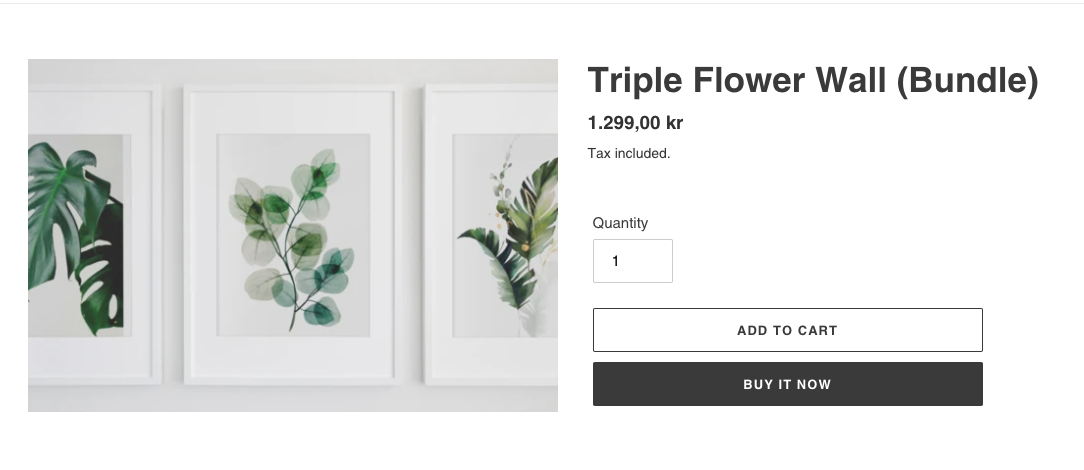
To get started, you'll need to create your bundled product within your ecommerce store. For example, let's say you want to offer a set of three framed art prints designed to be displayed together. Here’s how to set up this bundle:
Create the bundle listing in your ecommerce store (not in Gelato).
Include all the usual product information, such as a title, description, image, and price.
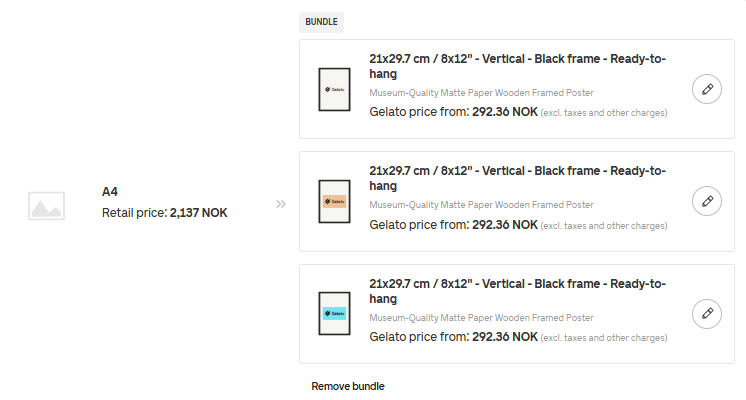
For our example, the bundle includes three different framed posters.
For more details about creating product listings for your specific platform, check out these resources:
Adding and updating products (Shopify)
Adding and Managing Products (WooCommerce)
Physical products (Squarespace)
Products and Variants (BigCommerce)
For Shopify users: to ensure that the orders are properly imported to Gelato, you can do the following when creating the product, see below GIF.
This ensures orders are fulfilled from the app location, and status updates and tracking information are sent seamlessly. Set the SKU to your liking!

Once the product is created in your ecommerce store, hit the Sync products button in your store view on Gelato side, see:

The newly created product should appear in your store as Not Connected:
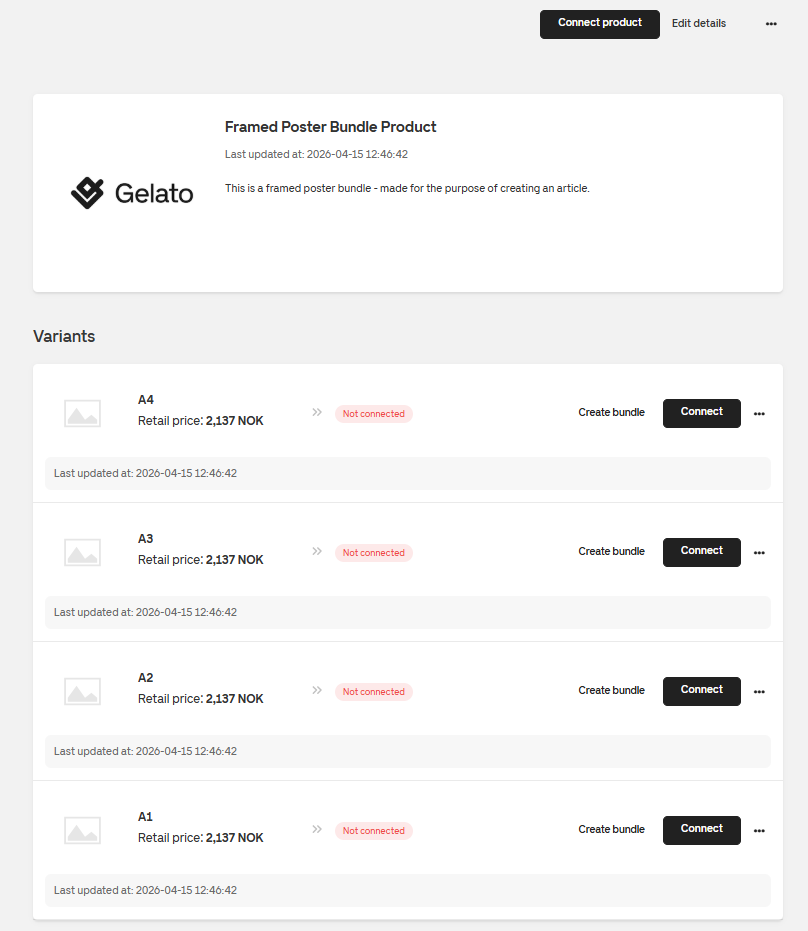
Setting up the Bundle Product
You might notice the Create bundle option now, click on it and choose between 2 or 3 items in your bundle.
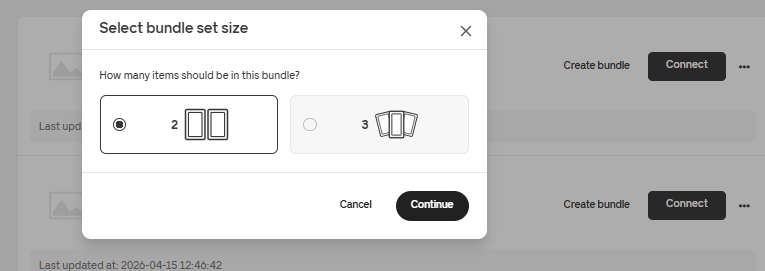
Once you hit Continue, you will be taken to our Product Catalog to select the first item in the Bundle.
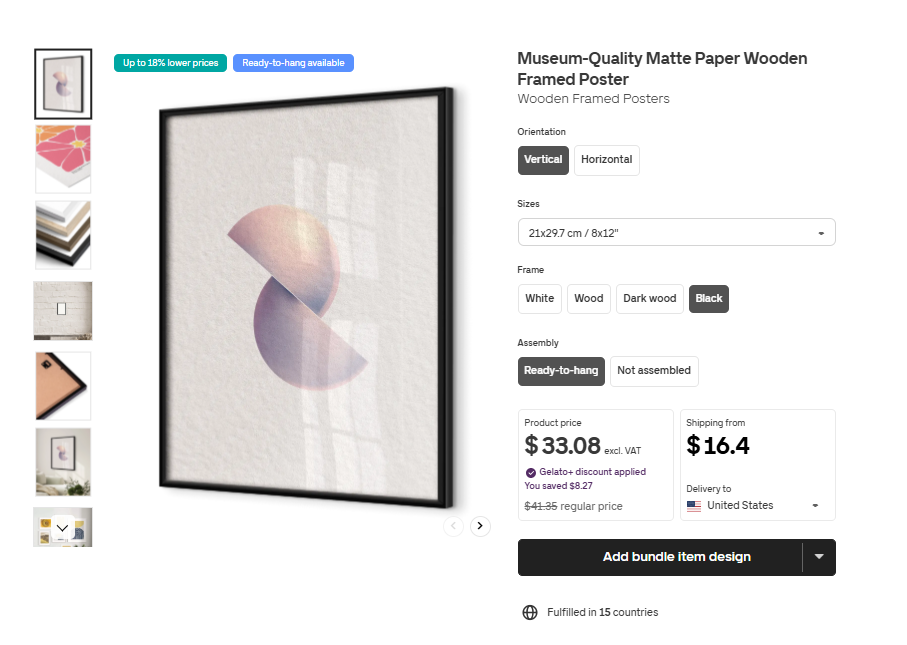
Click on Add bundle item design to start designing the first item in your bundle, and you will be taken to our design editor.
You can read more about our design editor here: How to design a product
Once finished, you will be back in the product page where you can continue connecting the other parts of your bundle.
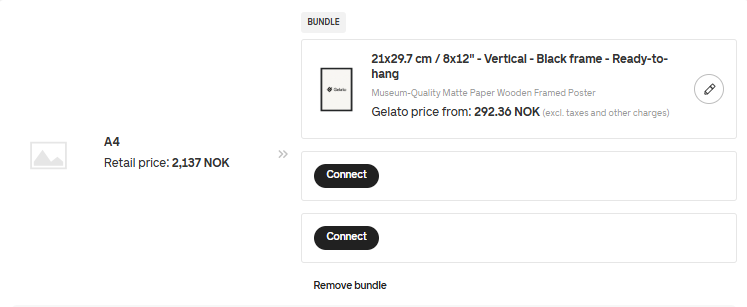
After you've added all parts of your bundle, you can freely edit each product individually at any time by clicking on the pencil button. If needed - you can always click on Remove bundle as well.
How does ordering bundles work?
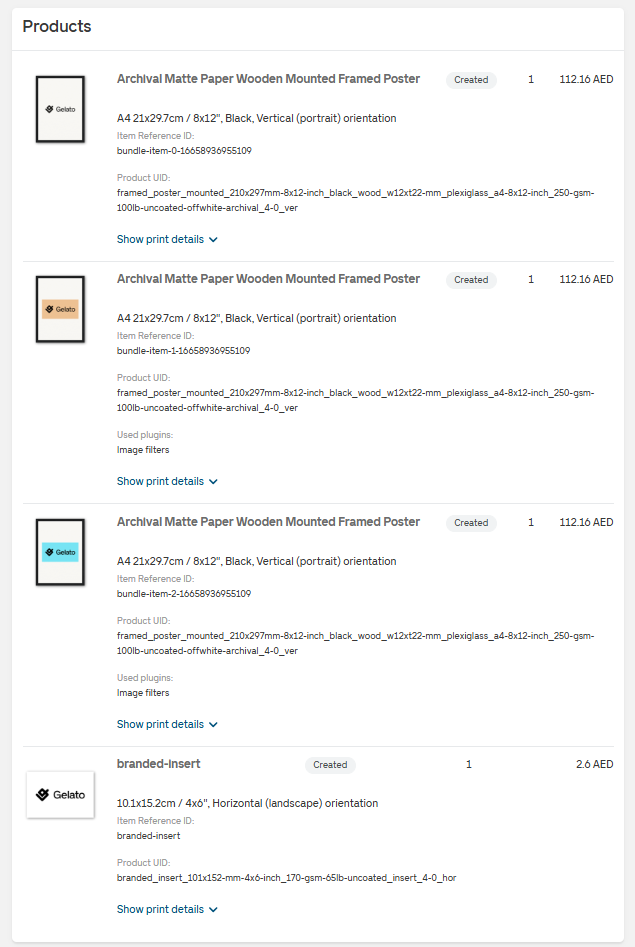
When a bundle order is placed, no additional work is needed from you - we will automatically import the order including all items included in the bundle, with their assigned designs.
Current limitations
This feature is still in development, so there are a few limitations:
We currently don't create mockups for bundle products.
Products with bundles don't have bulk editing options - this means that mockup and price changes need to be done directly in your ecommerce store.
Bundles are currently not supported for multi-page products i.e. calendars, photo books and brochures.
Duplicate and Save as template options will not work on products with bundles.
Bulk connect/create operations are not supported for bundles.
Creating bundles in existing products
To create a bundle in an existing product, all you have to do is click on the three dot menu next to a connected variant (or add a new not-connected variant).
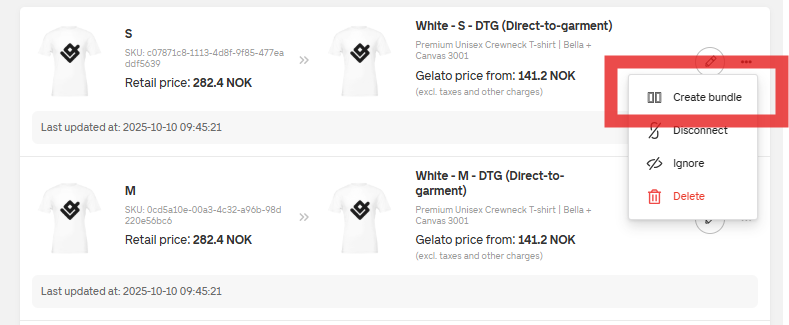
The connected variant will be the first item in your bundle.
Keep in mind that if you add a bundle to an existing product, it will lose the bulk editing options (Edit designs, Edit Mockups and Edit Prices).