
Adding AI-Estimator to your customer experience can be done in two ways: embedding a self-quote tool directly on your website, or inviting customers to log in and get personalized quotes through GelatoConnect. This guide explains both options step by step.
Adding Self-Quote Functionality to Your Website
You can integrate the AI-Estimator so that when users click your “Get a Quote” button, an embedded iframe opens and displays the quoting tool. An example implementation is available for reference.
Video: Website visitor experience with Self-Quote
Implementation steps
1) Implement for Desktop version of your website
Button detection
Add click event listeners to your existing “Get a Quote” button. These should prevent the default navigation and instead trigger the iframe mode.Content replacement
When the iframe opens, hide the main page content and footer while keeping the header visible. This can be achieved with CSSdisplayorvisibilityproperties.Iframe integration
Insert a full-width iframe that loads the quote URL provided by Gelato (https://printconnect.gelato.com/XX_XXX).You can append a language parameter (for example,
?lang=esor?lang=de) to the iframe URL — we then apply the language from this query parameter. Currently supported language codes:en,es,es-CL,pt,pt-BR,ru,ko,zh-CN,fr,de,ja,it,pl,vi,uk,sv,no,bg,cs,roUse
height: calc(100vh - 80px)to leave space for the header (adjust 80px based on your actual header height).Set
width: 100%to ensure the iframe covers the full width of the page.
Iframe theme
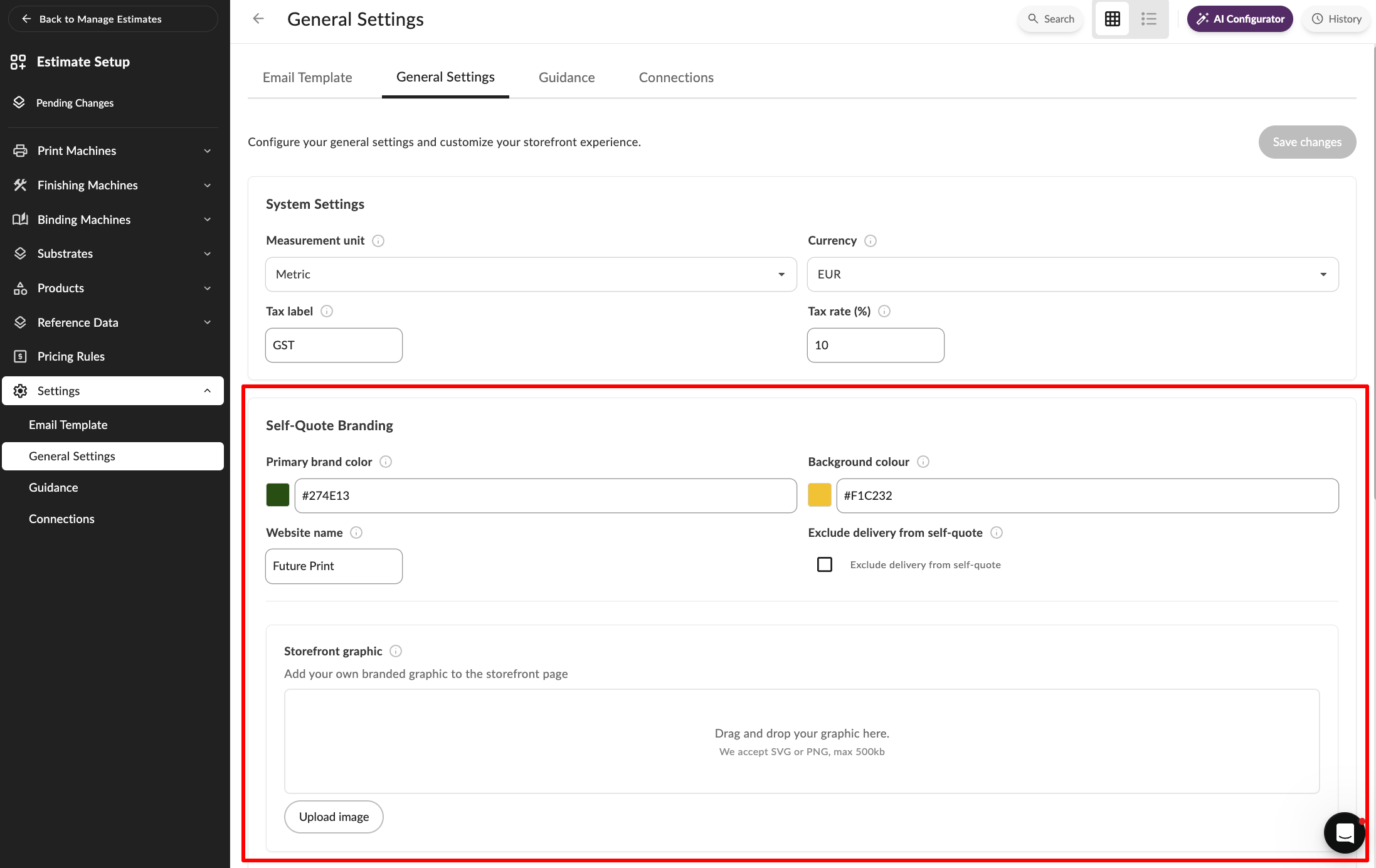
In your Estimate Setup, specify your color theme, background image and company name under the Settings > General Settings. See example below.
If your shipping options are set so that delivery is excluded, set “Self Quote Delivery Excluded” to yes to indicate in estimates that shipping is not included. If delivery charges is included in estimates, leave this as no
Text and translations
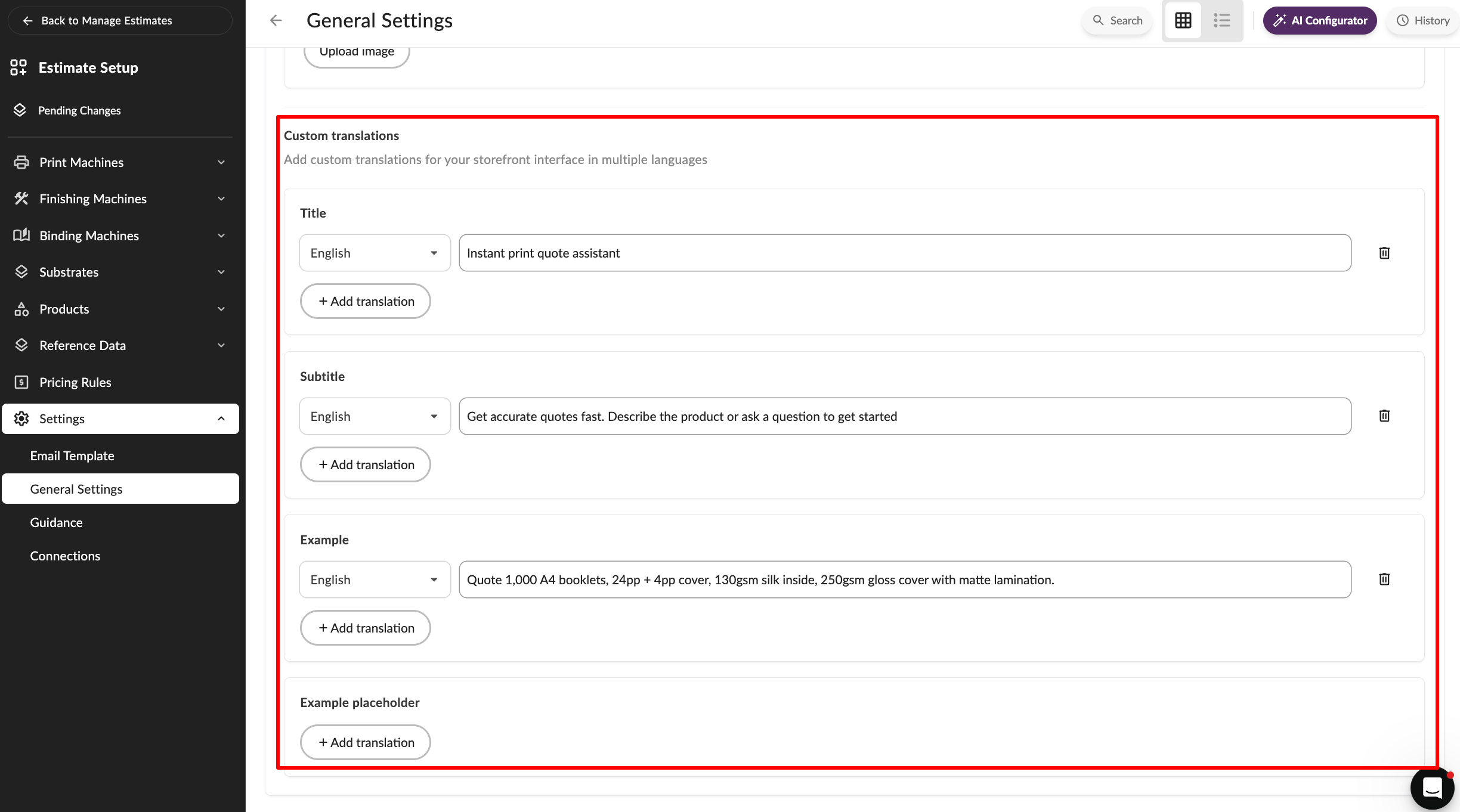
Under General Settings in your Estimate Setup in GelatoConnect, you can define the title, subtitle, and example text shown on your Self-Quote page. You can also add translations for each field — when the iframe is embedded in different languages, the correct translation will automatically appear based on the language specified in the iframe URL.
Close button
Place a floating “Close” button at the top-left corner of the iframe area.<button style="position: fixed; top: 1rem; left: 1rem; z-index: 50; background: white; border: 1px solid #ccc; padding: 0.5rem 1rem; border-radius: 0.375rem;"> Close </button>
Configure it to hide the iframe, restore the original content, and re-enable scrolling when clicked.
Scroll prevention
Disable scrolling withdocument.body.style.overflow = 'hidden'when the iframe is active. Reset it toautoonce closed.State management
Use a boolean flag to track whether the iframe is open or closed. This allows you to toggle between the embedded view and your site’s normal layout.
Key CSS styles
height: calc(100vh - [header-height]px)for proper iframe sizingwidth: 100%for full-width layoutposition: fixedfor the close buttonoverflow: hiddenapplied to the body when iframe is activeConditional hiding and showing of the main content
1) Implement for mobile version of your website
On mobile devices, the AI Estimator provides a full-screen experience that maximizes space for the quote calculator. Key Implementation Steps below:
Full-Screen Positioning: Add buttons that will open the full screen experience (do not insert iframe as part of a page). Use `position: fixed` with `inset: 0`, `width: 100vw`, and `height: 100vh` to cover entire viewport. Set `z-index: 9999` to appear above all content.
Iframe Setup: Load `https://printconnect.gelato.com/XX_XXX` with `width: 100%`, `height: 100%`, and `border: none`. Test on actual devices (not just dev tools) to verify no white space or clipping.
iOS Support: Add `height: -webkit-fill-available` before `height: 100vh` in your CSS to ensure proper viewport coverage on iOS devices where 100vh can be unreliable.
Hide Page Elements: Conditionally hide header, footer, and navigation when iframe opens. Only show a compact close button (X icon, top-left, 32-40px size).
• Prevent Scrolling: Set `document.body.style.overflow = 'hidden'` and `document.body.style.position = 'fixed'` when iframe opens to prevent background scrolling and iOS bounce effects. Restore when closed.
Iframe Setup**: Load `https://printconnect.gelato.com/XX_XXX` with `width: 100%`, `height: 100%`, and `border: none`. Test on actual devices (not just dev tools) to verify no white space or clipping.
Inviting Customers to Get Personalized Quotes
You can also invite customers such that they get a login to self-quote. This ensures they get personalized pricing according to the pricing rules you have set for them. This also removes the need for them to manually enter details like name or email, and separate requests from verified customers
Video: Enabling Self-Quote and sharing access for existing customers
How it works
Logged-in customers will need to use the page directly (not as an iframe) as that is required for a secure experience.
They will get that link via email when invited, and they can also access it at https://printconnect.gelato.com/XX_XXX/login.