
This article provides a comprehensive guide on how to use Production Notes within the GelatoConnect platform. It covers the benefits, visibility, and management of notes attached to orders and print jobs, ensuring effective communication among production teams.
Overview
Production Notes enable production managers to attach contextual notes directly to orders, print jobs, or order items. These notes are immediately visible to operators at production stations, facilitating clear communication of important instructions without leaving the platform.
💡 Key Benefit Production Notes are live — notes added by a manager appear instantly at the relevant production station and in Manage Orders, ensuring operators always have the latest instructions.
Where Production Notes Appear
Depending on the level at which a note is added, it will be visible in the following locations:
Note added at | Visible at the production station? | Visible in Manage Orders? |
Order level | ✅ Yes | ✅ Yes |
Print job level | ✅ Yes | ❌ No |
Order item level | ✅ Yes | ❌ No |
How to Add a Production Note
Step 1 — Click Any Item in Dispatch Overview
From Dispatch Overview, open the order or print job you want to annotate by clicking its order ID.
Step 2 — Open the Right-Hand Menu
On the right-hand menu, you will see a new + (plus) icon button. Click it to open the Production Notes input area.
pb57.png)
Step 3 — Type and Submit Your Note
Enter your note in the text field. For example:
"Check that this order contains the specific packaging insert."
Click Add to save the note. You can add as many notes as needed — there is no limit per order or print job.
Viewing Production Notes
Latest Note
The most recent note is always displayed at the top of the right-hand panel, ensuring the most critical instruction is immediately visible.
All Notes
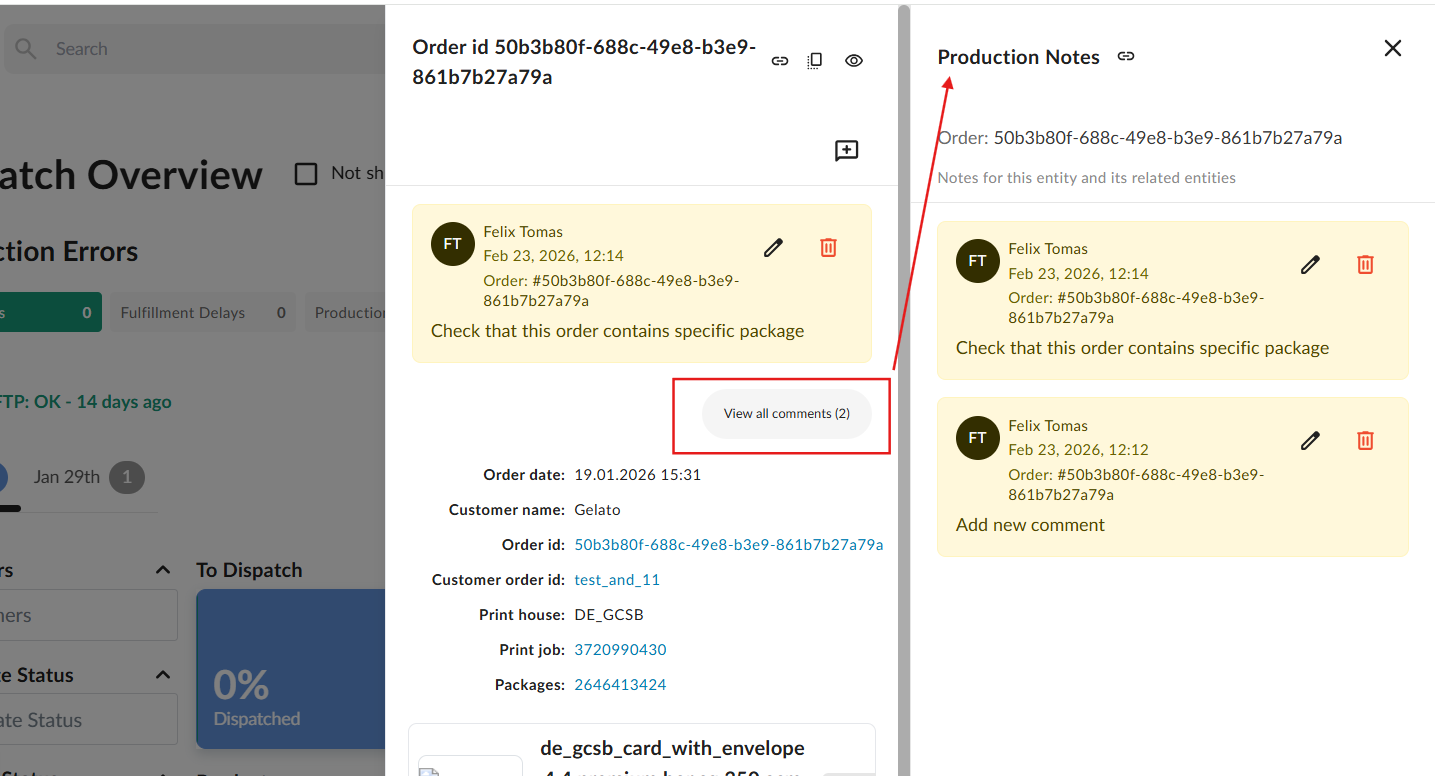
To see the full history of notes for an order or print job, click the View all comments button. This opens a panel showing:
The note content
The name of the user who added it
The date and time it was added
The order or print job it is associated with
Notes in Manage Orders
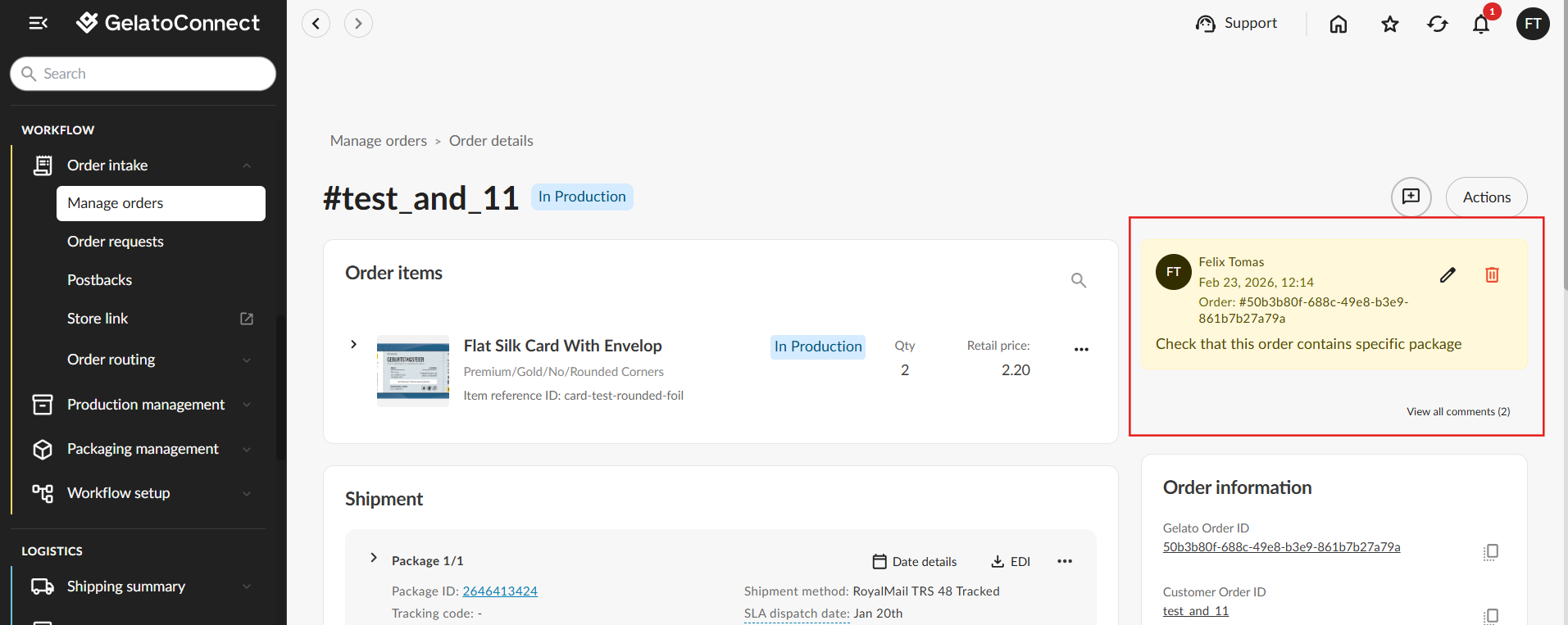
If a note was added at the order level, it also appears in Manage Orders. Look for the note indicator in the top-right area of the order card or detail view.
Editing and Deleting Notes
You can edit or delete any note that you personally added. Notes created by other users cannot be modified or removed by you.
Edit: Click the note to modify its content. Changes are saved, and the updated note moves to the top of the list.
Delete: Use the delete option on your own notes to permanently remove them from the thread.
Adding Notes at Print Job Level
The same + icon is available when viewing an individual print job. Notes added here follow the same workflow but are scoped to that print job only — they will not appear in Manage Orders.
📌 Note: Print-job-level notes are visible at the production station for that specific print job, but are not surfaced in the Manage Orders view.