
This article provides a comprehensive guide on how to use the Connections feature to send data via HTTP in workflows. It covers the steps to add a connection, utilize it within a workflow, edit existing connections, and addresses frequently asked questions to enhance your understanding and application of this feature.
Overview
The Connections feature lets you configure and save external HTTP/HTTPS endpoints and SFTP connections in one central place. Once a connection is saved, you can use it across workflows using the Send to HTTP or Send to SFTP activity to send data or files to that endpoint.
🎬 Video Walkthrough
Step 1: Add a Connection
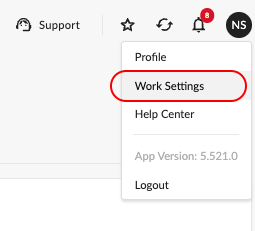
Click on your Profile icon in the top right corner.
Navigate to Work Settings → Connections.
Click Add Connection.
Fill in the connection details:
Name — A label to identify this connection (e.g.,
My API Endpoint).URL — The HTTPS URL of the endpoint.
Authentication — Select the appropriate auth type, or choose No Authentication if none is required.
Headers(optional) — Add any HTTP headers required by the endpoint.
Click Test Connection to verify the endpoint is reachable.
Click Save Changes.
Your connection will now appear in the Connections list and be available for use in any workflow.
Note: Connections is designed to be the single hub for all your external integrations.
Step 2: Use the Connection in a Workflow
Open a workflow (or create a new one).
Add a new activity and select Send to HTTP Endpoint.
Configure the activity:
Connection — Select a saved connection from the dropdown.
Headers(optional) — Add or override headers for this specific workflow step.
Body Format — Choose how the data should be sent:
JSON (default)
XML
Save the workflow.
The activity will now send data to your configured endpoint whenever the workflow runs.
Editing a Connection
To update an existing connection:
Go to Profile → Work Settings → Connections.
Select the connection you want to edit.
Make your changes (e.g., update the URL, switch body format, or add headers).
Click Save Changes.
Any workflows using this connection will automatically reflect the updated configuration.
FAQs
Can I use the same connection in multiple workflows?
Yes. Once a connection is saved, it is available in the connection dropdown across all workflows.
What body formats are supported?
Currently, JSON and XML are supported as body formats when sending data via the Send to HTTP activity.
What if my Test Connection fails?
Double-check the URL for typos, ensure the endpoint is publicly accessible, and verify that the correct authentication and headers have been provided.