
This article explains how to use multi-product estimation in AI Estimator, enabling you to estimate everything from a simple two-item kit to a 100+ line tender or RFQ in seconds.
Overview
Multi-product estimation allows you to estimate multiple products within a single estimate, eliminating the need to handle them manually or create them as separate estimates. This helps you price accurately across many items and respond faster to win more jobs.
Video walkthrough
Supported Input Formats
Text Input: You can describe multiple products directly in the AI chat—for example, a booklet with inserts—and AI Estimator will create estimates for each item.
File Uploads: You can upload files containing tenders, RFQs, or campaigns with tens or even 100+ products. Supported file formats include PDF, Excel (.xlsx), and CSV.
Supported Delivery Options
When estimating multiple products, you'll need to select how they will be shipped:
Separate Delivery: Each product has its own shipping charge. Use this for campaigns where items are delivered individually (e.g., one item per day over 10 days).
Consolidated Delivery: All products are shipped together (e.g., on a pallet). Use this for bulk orders where everything goes to the same destination at once.
File Requirements for Excel/CSV Uploads
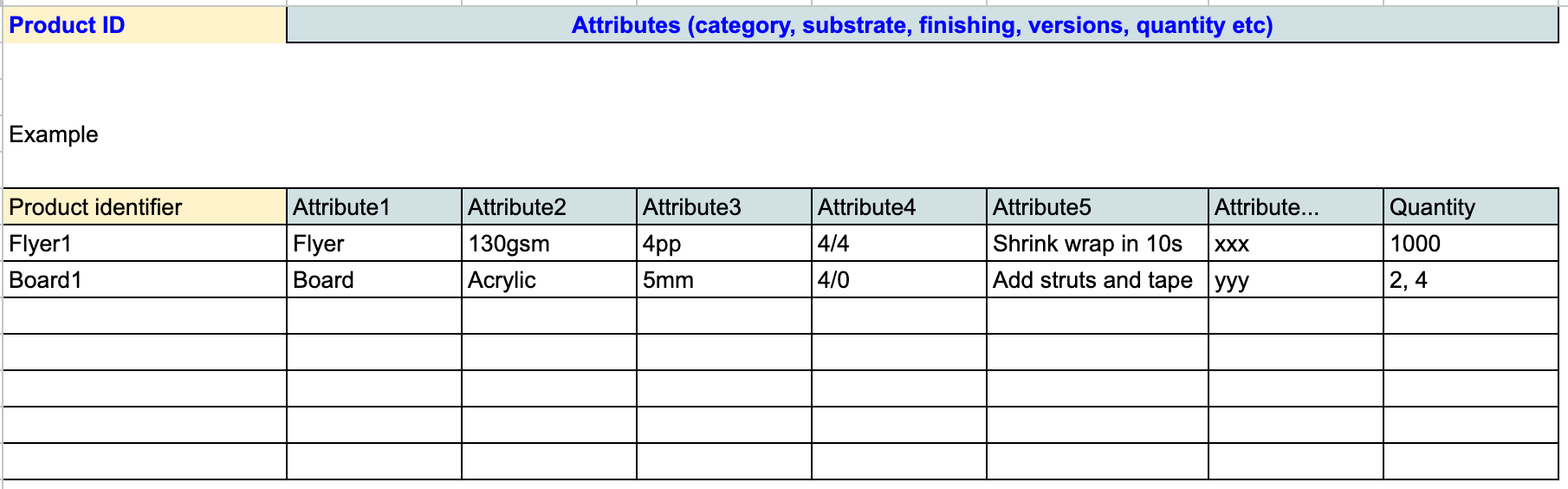
Your file doesn't need to be perfect—AI will process it—but following these guidelines will increase confidence and accuracy:
One title row: Include a single header row with column names
Product identifier: Each row should have some kind of identifier (AI will create one if missing)
Product attributes: Include columns that describe each product (e.g., product name, product category, paper weight, paper stock, size, finishing)
Quantity: Include a quantity column (can be labeled "Quantity," "QTY," "Amount," etc.)
Clean up unnecessary data: Remove columns that don't help with estimating (e.g., forecast data, contact information, project names)
Tip: The column names don't need to match specific text—AI will understand the intent. As long as a human could understand what the product is by reading the title row and data row together, AI Estimator will be able to process it.
How to Create a Multi-Product Estimate
Navigate to the Gelato Connect interface
Click the down arrow next to the estimate button
Select Multi-Product Estimate
Choose your delivery option: Combined or Separate
Either type your product specifications directly, or click the file attachment button to upload your file
Click Submit
Wait for processing (this may take a few minutes for large files—do not exit the screen)
Reviewing Your Multi-Product Estimate
Once processed, you'll see:
Products organized by product category (e.g., Flat Products, Books, Folded Products)
Status indicators: Fully Calculated (no review needed) or Review Needed (AI has flagged items requiring attention)
For items marked "Review Needed":
Click the dropdown to see what needs review (e.g., "Paperweight needs review")
Select the correct value from the dropdown options
Once confirmed, the yellow highlight disappears and status changes to "Fully Calculated"
Editing Individual Products
To dive deeper into any product:
Click Edit on the product row
The single-product estimate view opens with all AI-extracted information
Review the price breakdown, imposition, and all attributes
Make any necessary changes
Click Back to return to the multi-product view with changes applied
Saving and Exporting
When you're satisfied with all products:
Click Save Estimate
To export, select Export as CSV or Export as Excel
The export includes the row name from your original file for easy comparison
Note:
You can also create multi-product estimates manually by adding categories and products one by one, though using AI is recommended for efficiency.
When you create a multi-product estimate, each product counts as a separate estimate for billing and usage limits. Why? Multi-product mode runs each product through the AI Estimator in parallel - so a 5-product estimate uses the same AI tokens and infrastructure as 5 individual estimates. The multi-product feature simply bundles them together for your convenience.